GlowInvoicing plans come in three divisions. This table shows which division includes each feature. Individual packages can switch some features off (for example the Sales Free plan has no recurring billing, statements, ageing or payment reports), and your administrator can see the exact list on the Upgrade page.
Feature
Sales Management
FBR Digital Invoicing
Sales + FBR
Note
Standard invoices (INV-)
✓
—
—
Not on FBR plans: they issue FBR invoices instead
FBR tax invoices: validate, submit, QR code
—
✓
✓
Sandbox testing and live submission; FBR invoices are counted per month by the package
Quotations (and convert to invoice)
✓
—
✓
Record payments and receipts
✓
—
✓
Recurring billing
✓
—
—
Not on Sales Free
Customer statements
✓
—
✓
Not on Sales Free or Hybrid Pro
Receivables ageing report
✓
—
✓
Not on Sales Free or Hybrid Pro
Payment reports, financial overview, insights
✓
—
✓
Not on Sales Free or Hybrid Pro
Customers, items, projects, tax rates, bank accounts
Each section shows an "Included in" line, so you can see at a glance whether a screen exists on your plan.
1. First steps
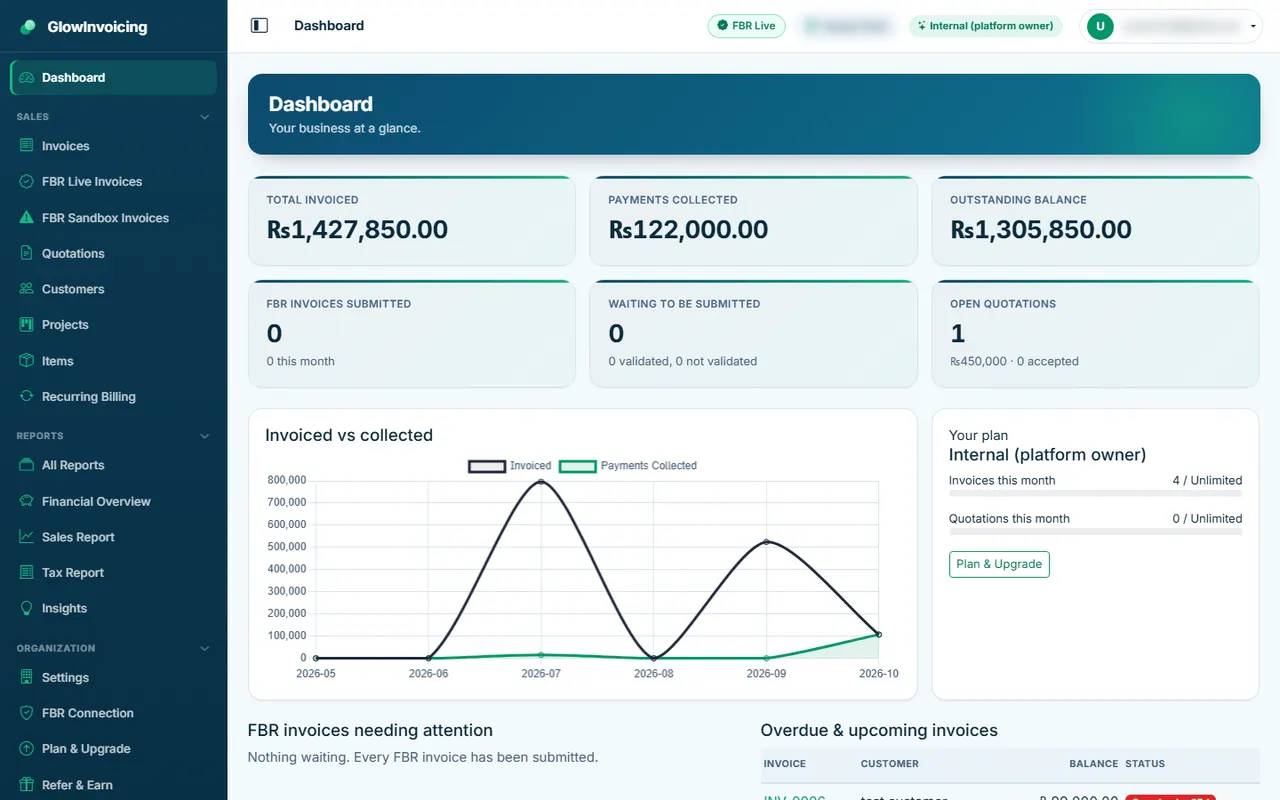
Your dashboard
The dashboard is the first page after you sign in. It shows what your plan includes: total invoiced, charts, recent invoices and anything that needs attention.
Included in:✓ Sales Management✓ FBR Digital Invoicing✓ Sales + FBR
The tiles shown depend on the plan: payments, quotations and FBR tiles only appear where the plan has them.
Use the menu on the left to open any area. Click a heading to fold or open a group.
The top bar shows your company, your plan and the FBR mode (Sandbox or Live).
Your name menu (profile, privacy, log out) is at the top right.
Tip: Click the plan name in the top bar to renew or upgrade.
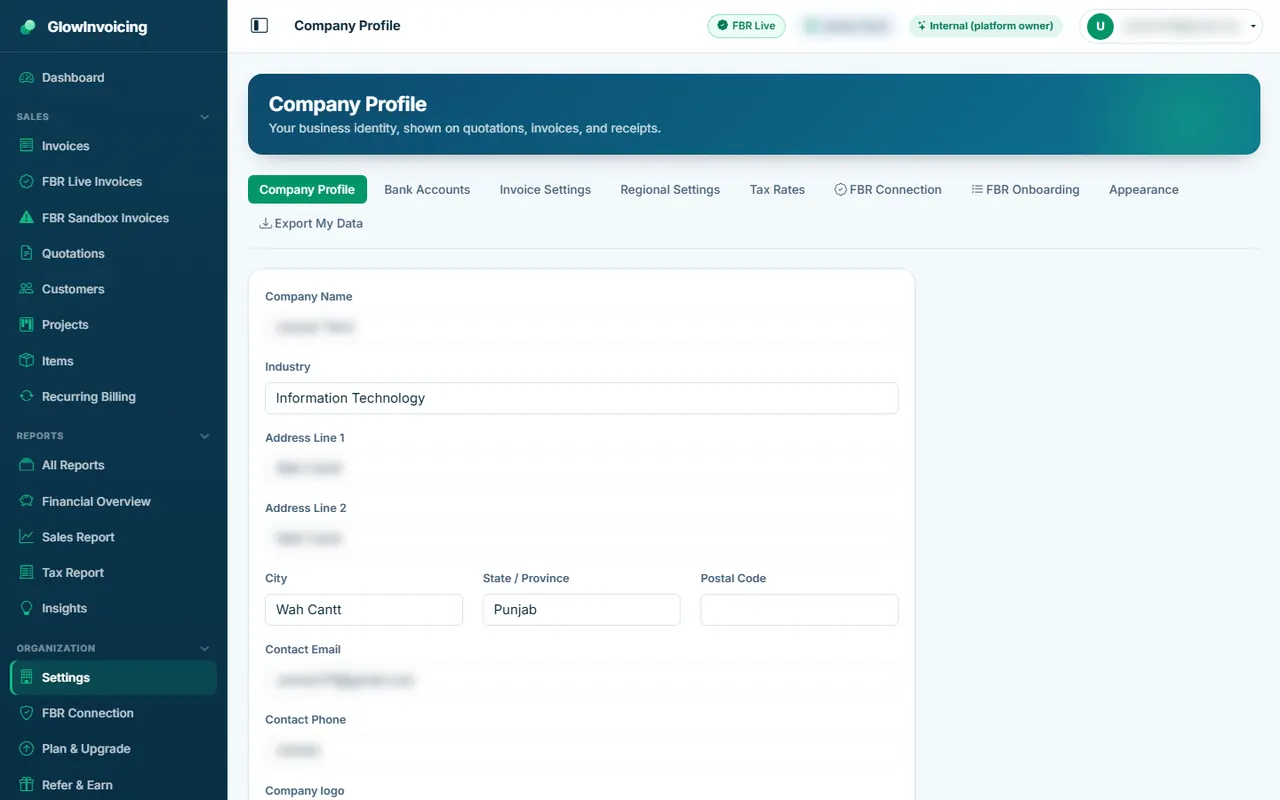
Company profile
Tell us who you are. This appears on every invoice and quotation.
Included in:✓ Sales Management✓ FBR Digital Invoicing✓ Sales + FBR
Enter your company name, address, phone and tax numbers.
Upload your logo (PNG or JPG).
Press Save.
Tip: Fill this in before creating your first invoice.
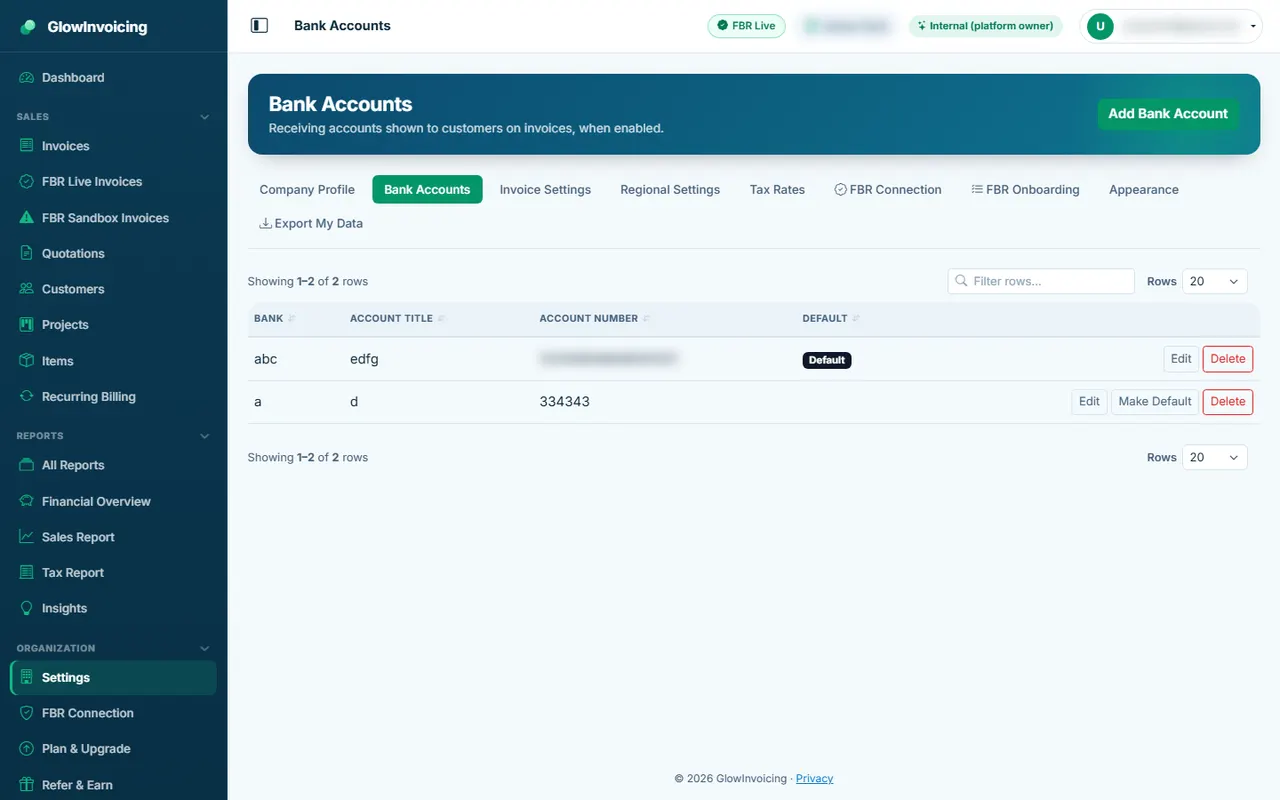
Bank accounts
Add the bank accounts customers should pay into. They can be printed on your invoices.
Included in:✓ Sales Management✓ FBR Digital Invoicing✓ Sales + FBR
Press Add bank account and fill in the details.
Mark one account as the default.
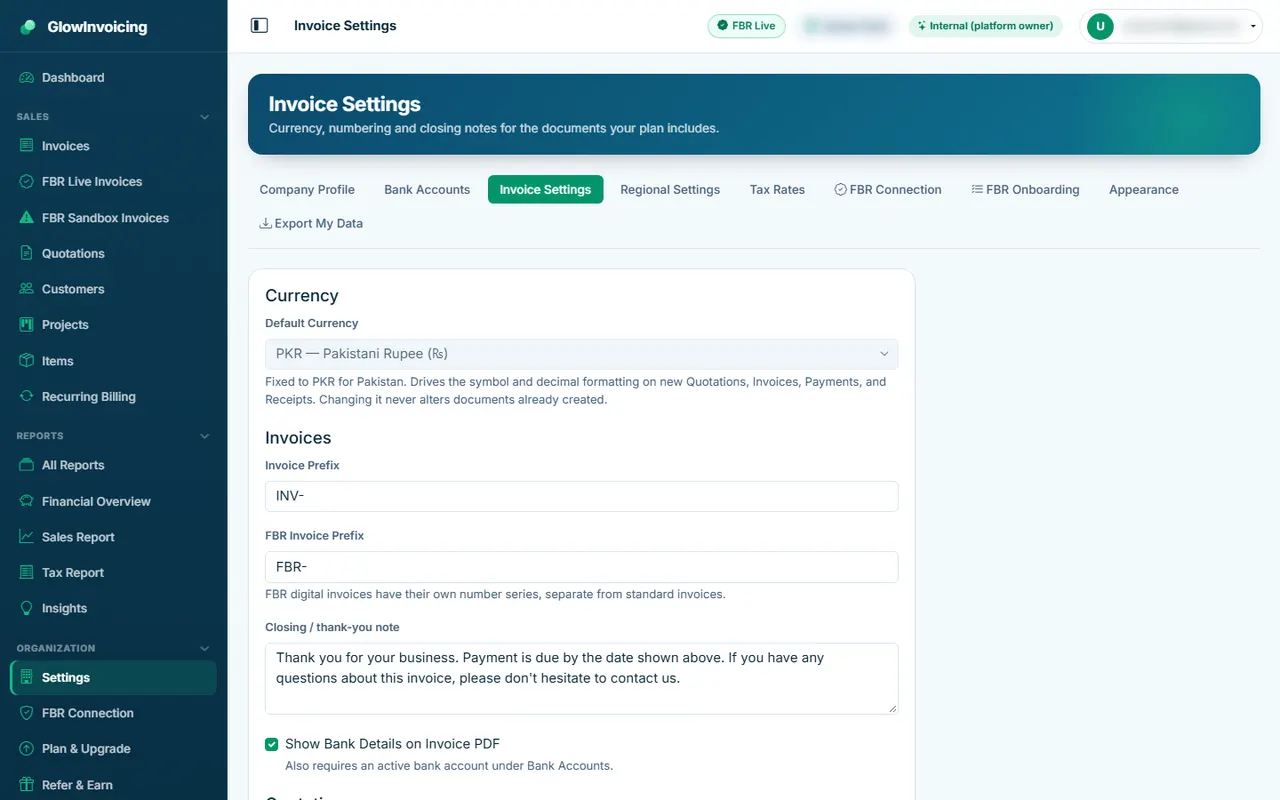
Invoice settings
Choose your invoice number prefix, payment terms and the note printed at the bottom.
Included in:✓ Sales Management✓ FBR Digital Invoicing✓ Sales + FBR
Standard-invoice prefix is for Sales plans only; the FBR invoice prefix is for FBR and Sales + FBR plans; quotation settings need quotations.
Change the prefix if you like (for example INV-).
Set the default payment terms.
Press Save.
Tip: Only the sections included in your plan are shown.
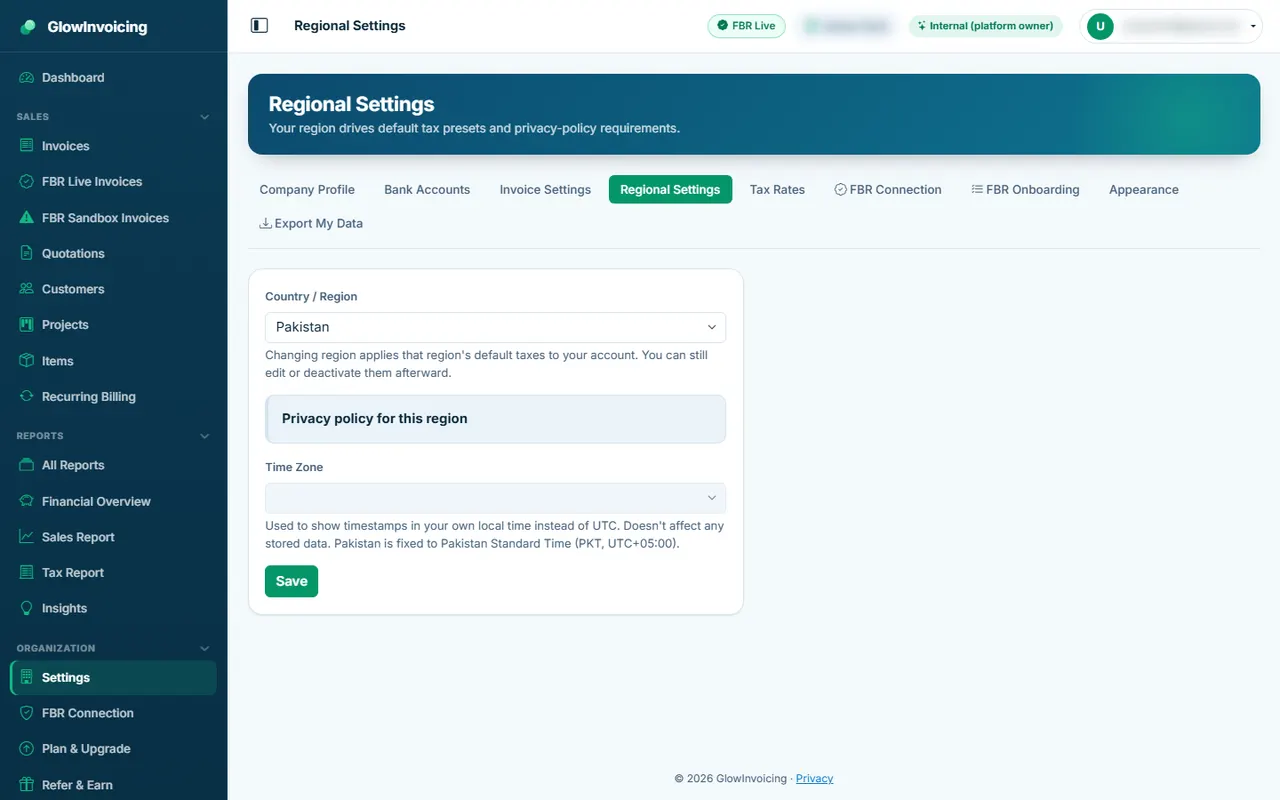
Regional settings
Region, currency and time zone. Pakistan companies use PKR and Asia/Karachi.
Included in:✓ Sales Management✓ FBR Digital Invoicing✓ Sales + FBR
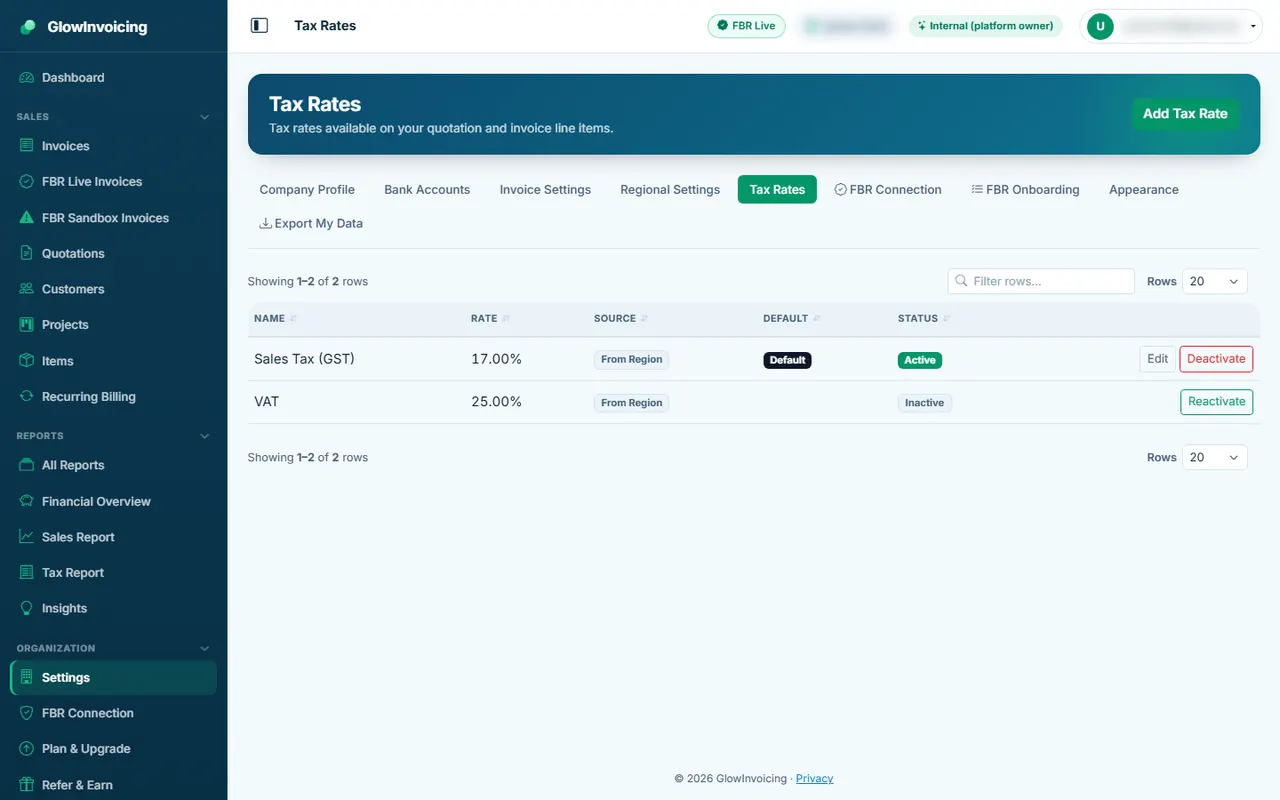
Tax rates
Create the tax rates you use on invoice lines, such as 18% sales tax.
Included in:✓ Sales Management✓ FBR Digital Invoicing✓ Sales + FBR
Add a rate with a name and percentage.
Set the default rate for new lines.
2. Customers and items
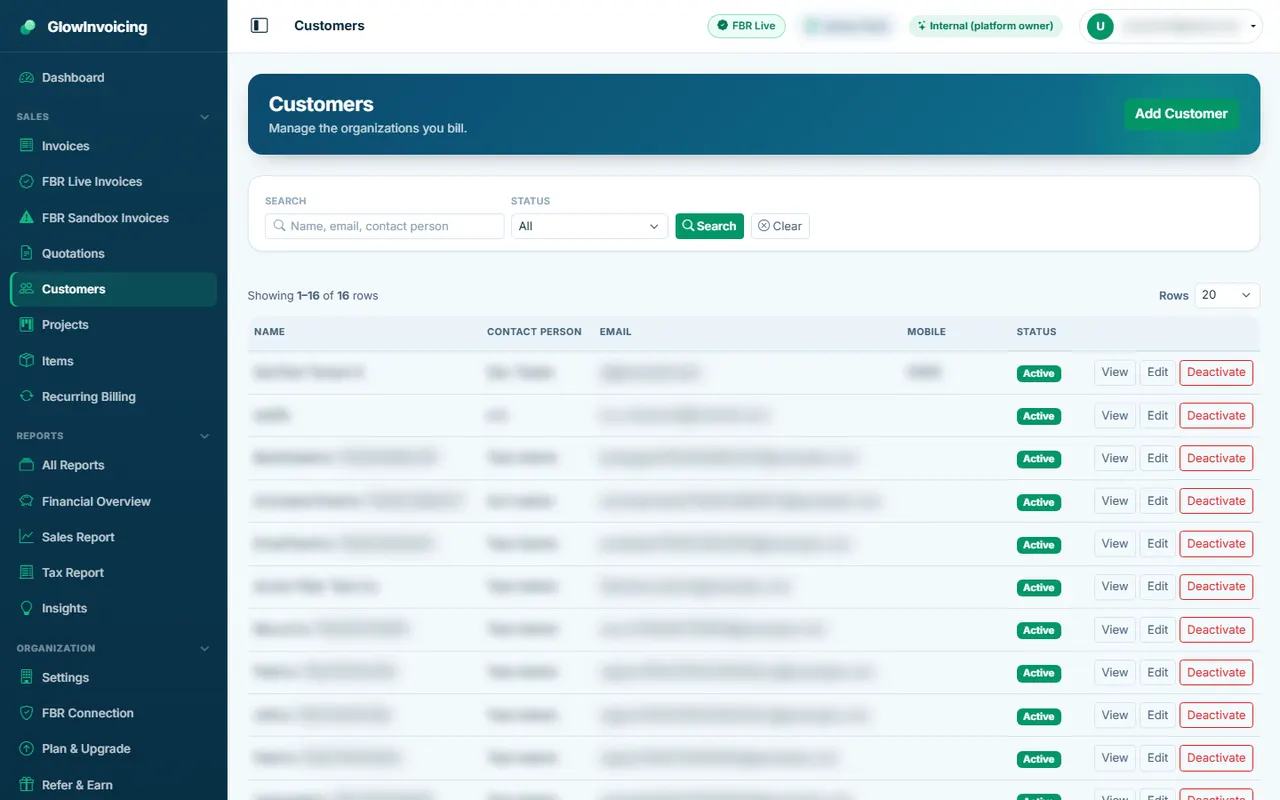
Customers
All the people and companies you bill.
Included in:✓ Sales Management✓ FBR Digital Invoicing✓ Sales + FBR
Use Search to find a customer.
Press Add Customer to create one.
Open a customer to see their invoices.
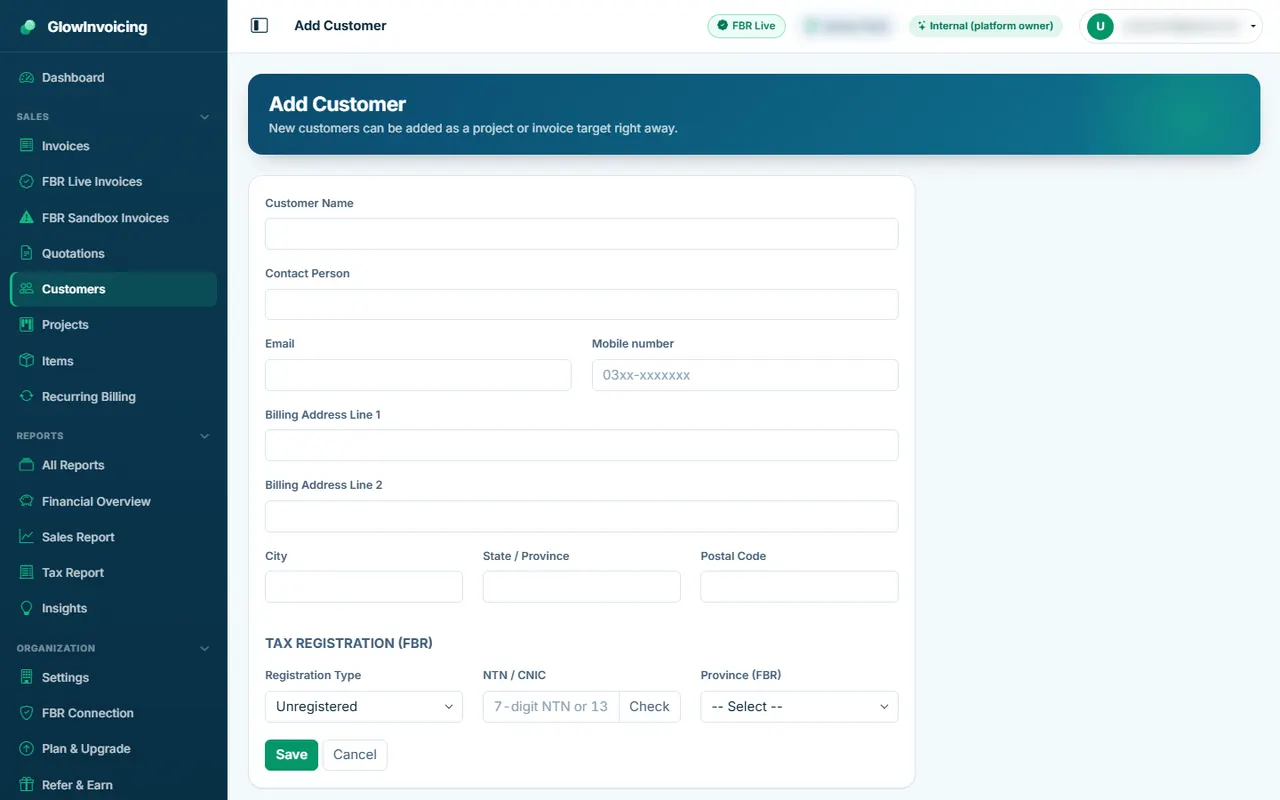
Add a customer
Fill in the customer details. Email and mobile are required.
Included in:✓ Sales Management✓ FBR Digital Invoicing✓ Sales + FBR
Enter name, email and mobile number.
For FBR invoices add the buyer's NTN or CNIC and province.
Press Save.
Tip: A customer's name locks once they have invoices.
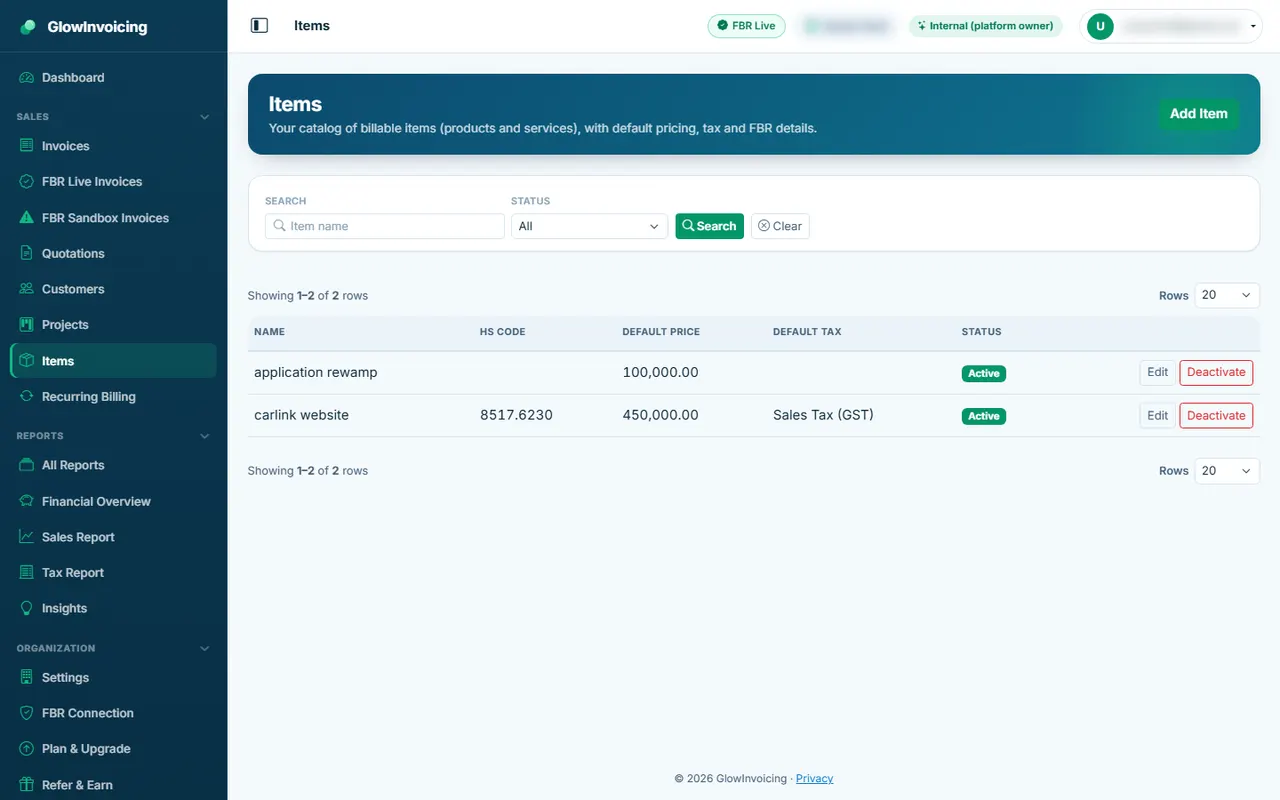
Items (products and services)
The catalogue you pick from when adding invoice lines.
Included in:✓ Sales Management✓ FBR Digital Invoicing✓ Sales + FBR
Press Add Item.
Enter the name, price, unit and default tax.
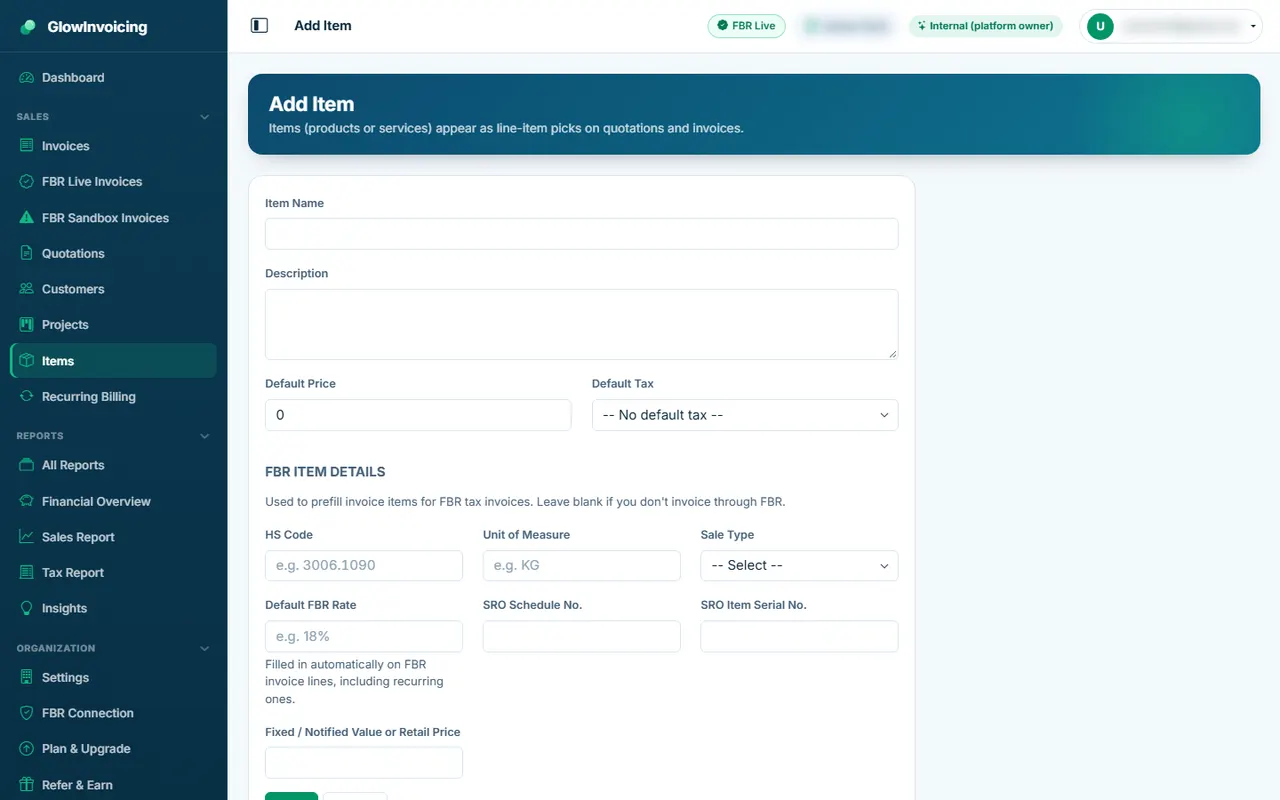
For FBR add HS code, sale type and rate.
Add an item
Items speed up invoicing: choose one on an invoice and the line fills itself in.
Included in:✓ Sales Management✓ FBR Digital Invoicing✓ Sales + FBR
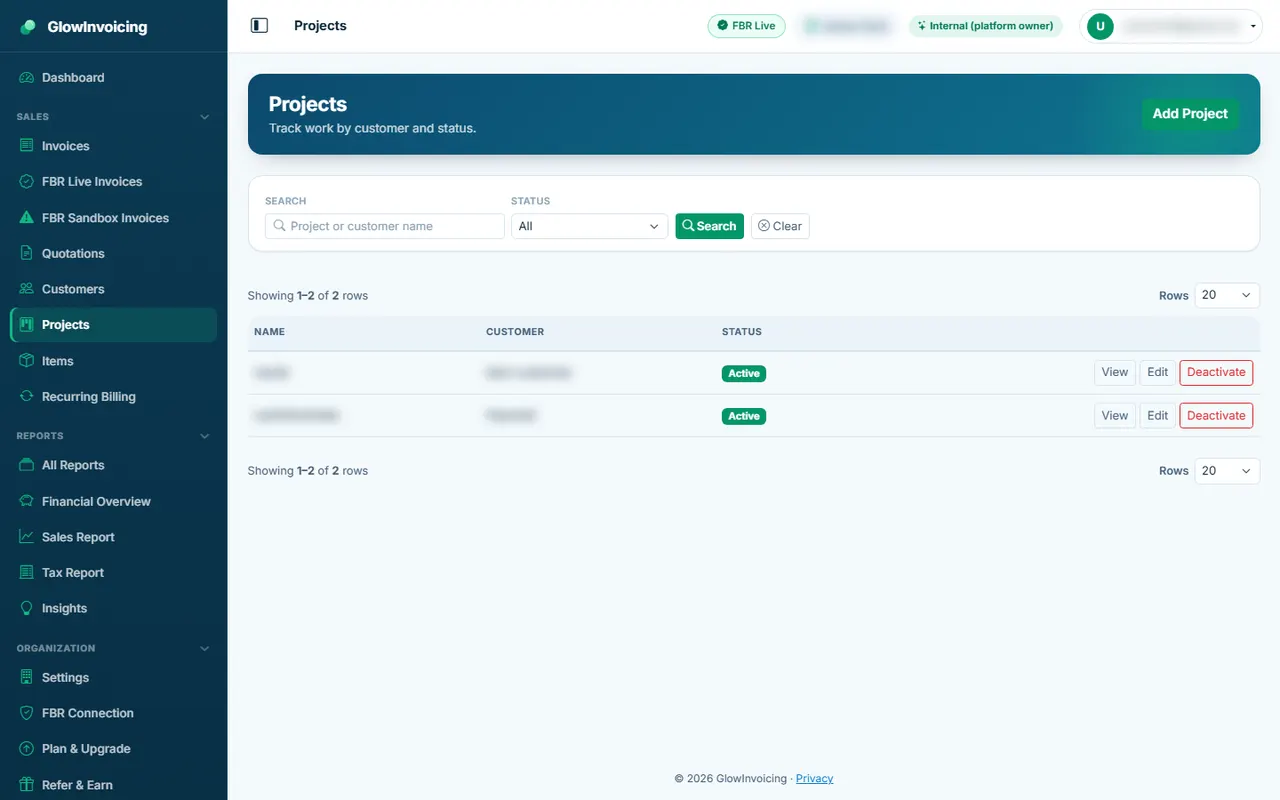
Projects
Optional: group invoices by project for each customer.
Included in:✓ Sales Management✓ FBR Digital Invoicing✓ Sales + FBR
3. Invoices and quotations
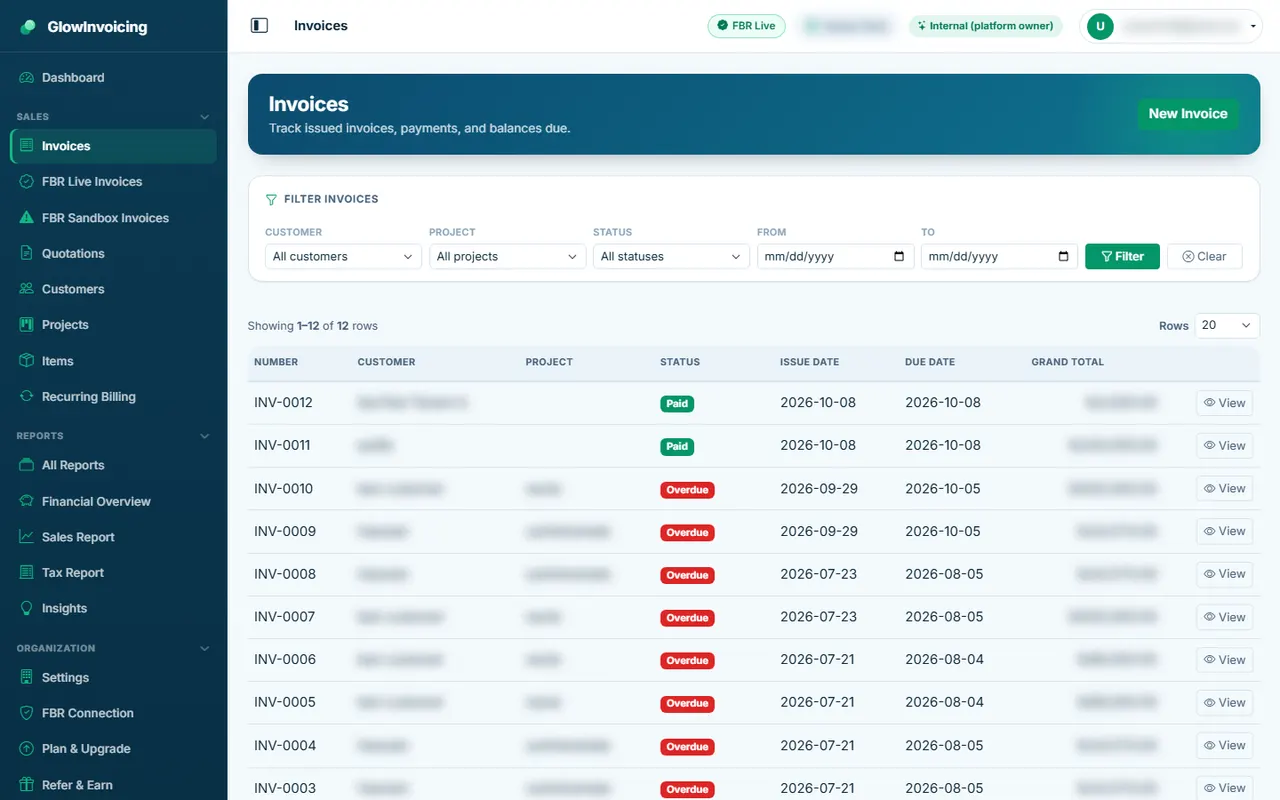
Invoices
Your standard invoices. Filter by date, customer or status, and sort any column.
Included in:✓ Sales Management✕ FBR Digital Invoicing✕ Sales + FBR
Standard (INV-) invoices are part of Sales Management only. FBR and Sales + FBR plans issue FBR tax invoices instead (see the FBR section).
Press New Invoice.
Use the status filter to find unpaid invoices.
Use the icons on each row to view, edit, download or delete.
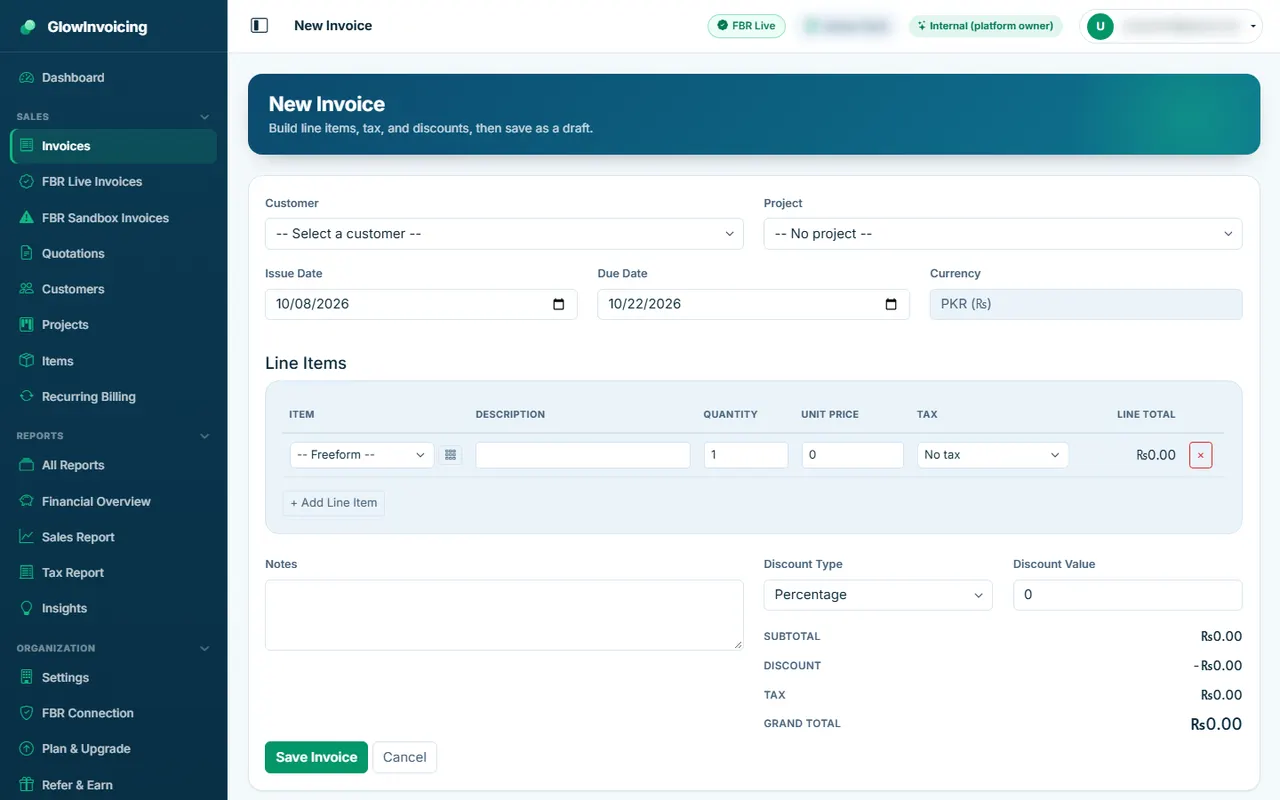
Create an invoice
Pick the customer, add lines and save as a draft.
Included in:✓ Sales Management✕ FBR Digital Invoicing✕ Sales + FBR
Standard invoicing is included in Sales Management plans only.
Choose the customer and dates.
Press the grid icon beside an item box to pick from your catalogue.
Check the totals on the right and press Save.
Tip: Drafts can be edited. Mark an invoice as sent when it goes to the customer.
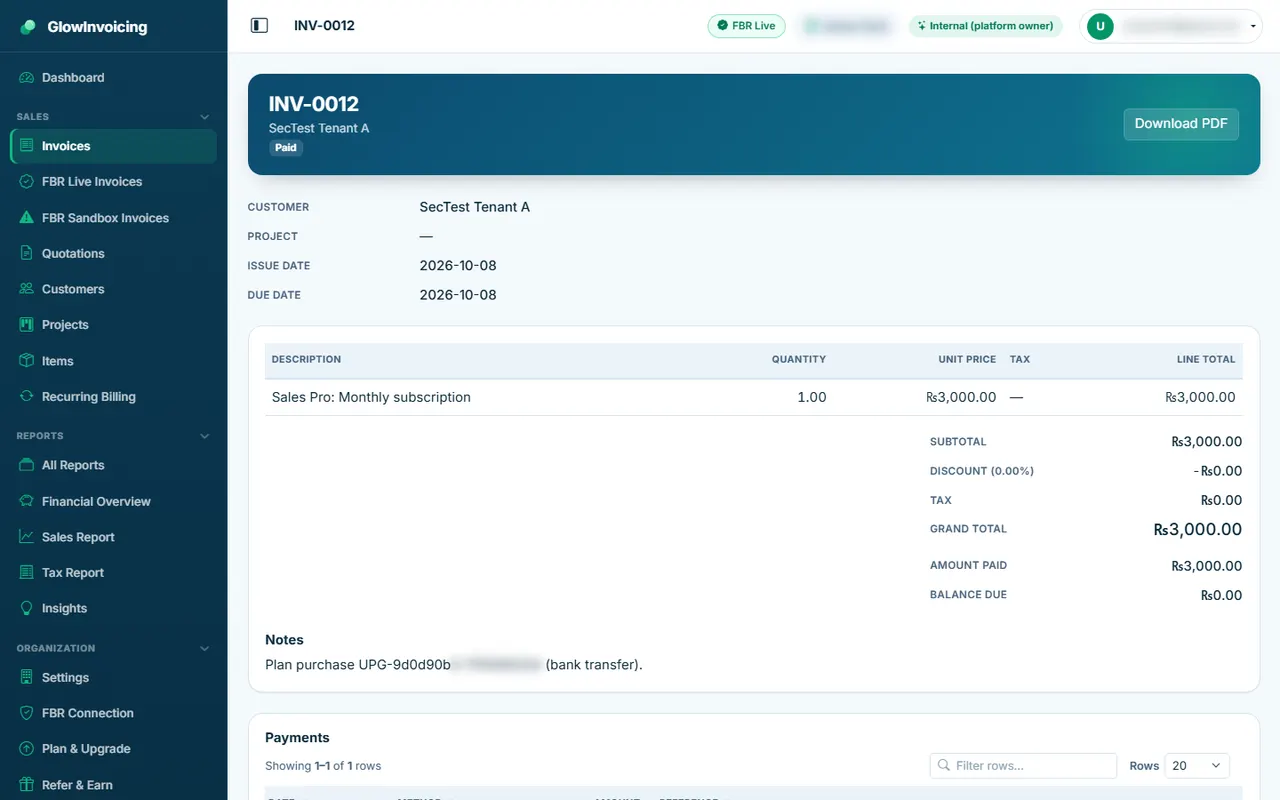
Invoice details and payments
Open an invoice to download the PDF, mark it sent and record payments.
Included in:✓ Sales Management✕ FBR Digital Invoicing✕ Sales + FBR
Recording payments and receipts on an invoice is available in Sales Management and Sales + FBR plans (not FBR-only).
Press Record Payment and enter the amount and date.
Download the PDF or the payment receipt.
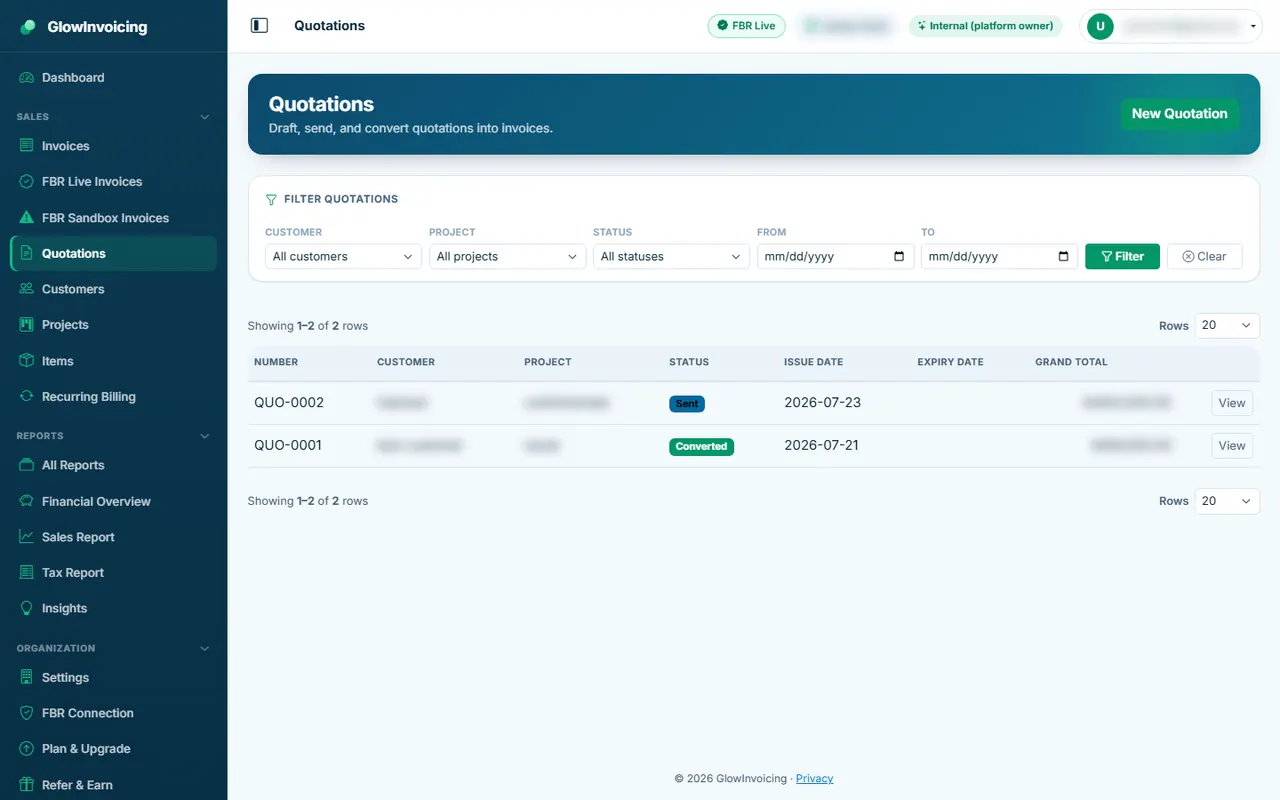
Quotations
Send a price offer first, then convert it to an invoice with one click.
Included in:✓ Sales Management✕ FBR Digital Invoicing✓ Sales + FBR
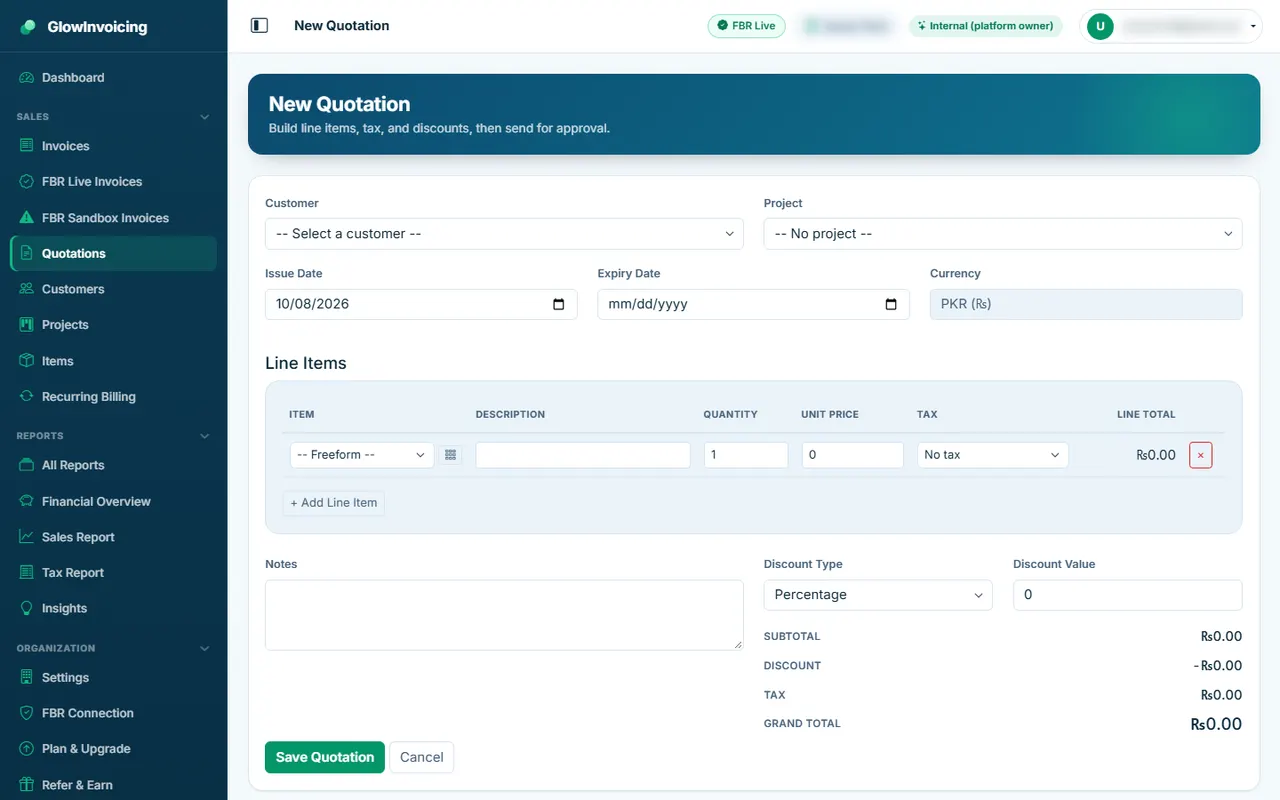
Create a quotation
Works like an invoice. When accepted, press Convert to Invoice.
Included in:✓ Sales Management✕ FBR Digital Invoicing✓ Sales + FBR
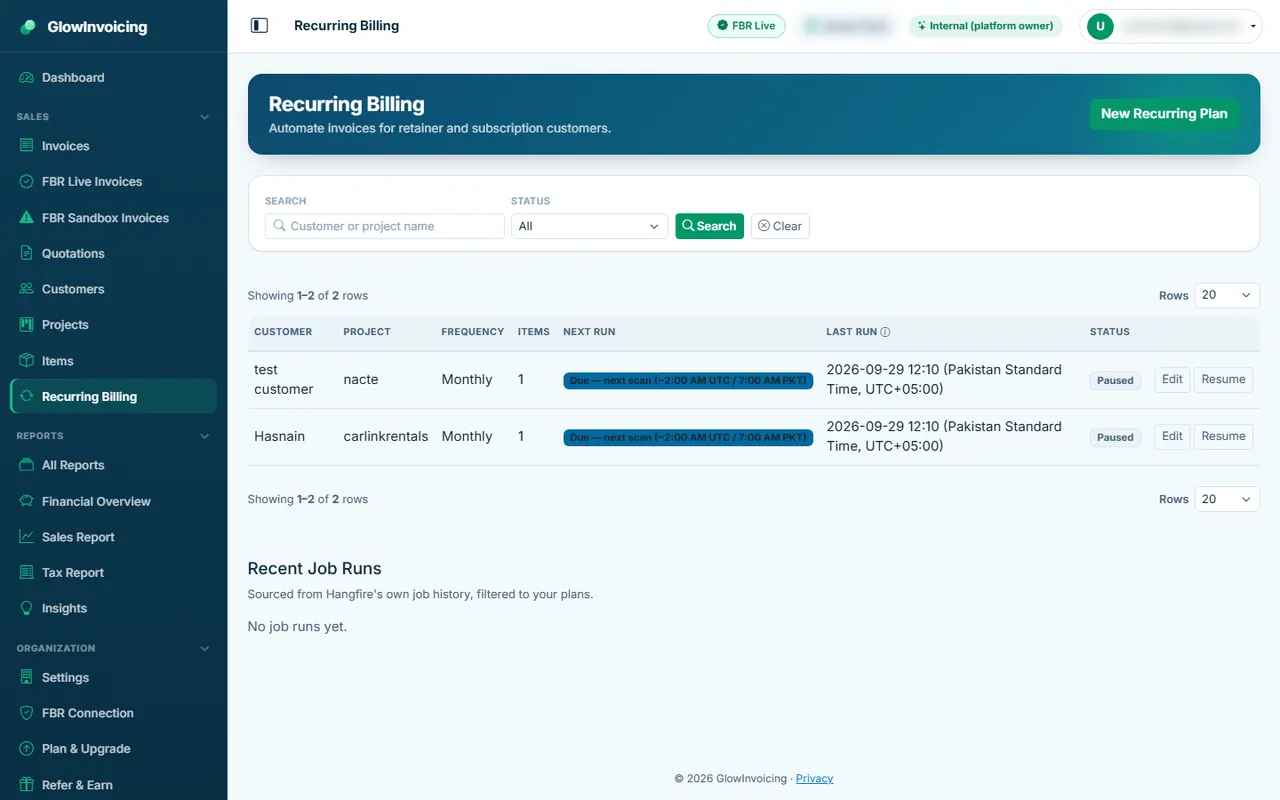
Recurring billing
Bill the same customer automatically every month, quarter or year.
Included in:✓ Sales Management✕ FBR Digital Invoicing✕ Sales + FBR
Recurring billing is in Sales Management only, and not on the Sales Free plan.
Press Add Plan, choose customer, items and the schedule.
Each cycle creates a draft invoice for you to review.
4. FBR digital invoicing (Pakistan)
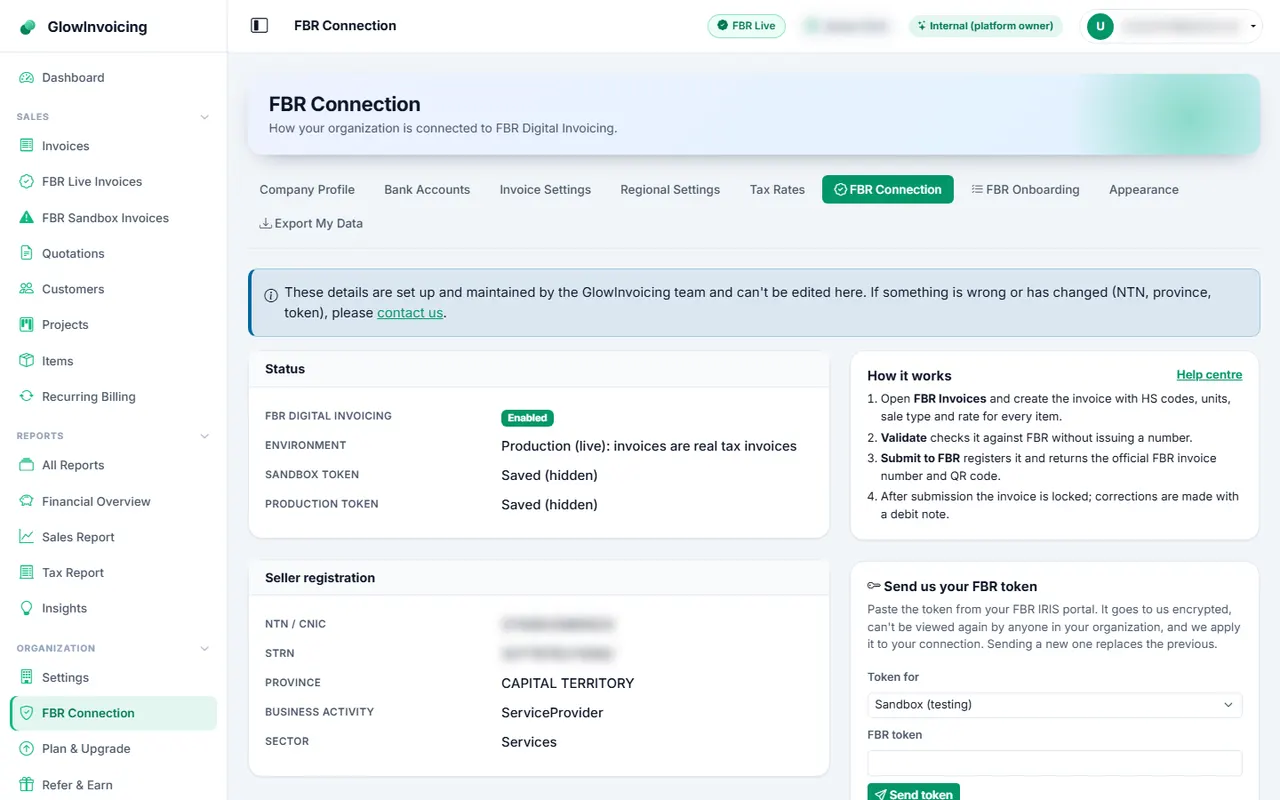
FBR connection
Shows which FBR environment your company uses and whether the connection works. The GlowInvoicing team switches FBR on for you.
Included in:✕ Sales Management✓ FBR Digital Invoicing✓ Sales + FBR
Send your FBR token using the secure box (it is never shown again).
Wait for our team to apply it.
Tip: Sandbox invoices are tests. Live invoices are real tax invoices.
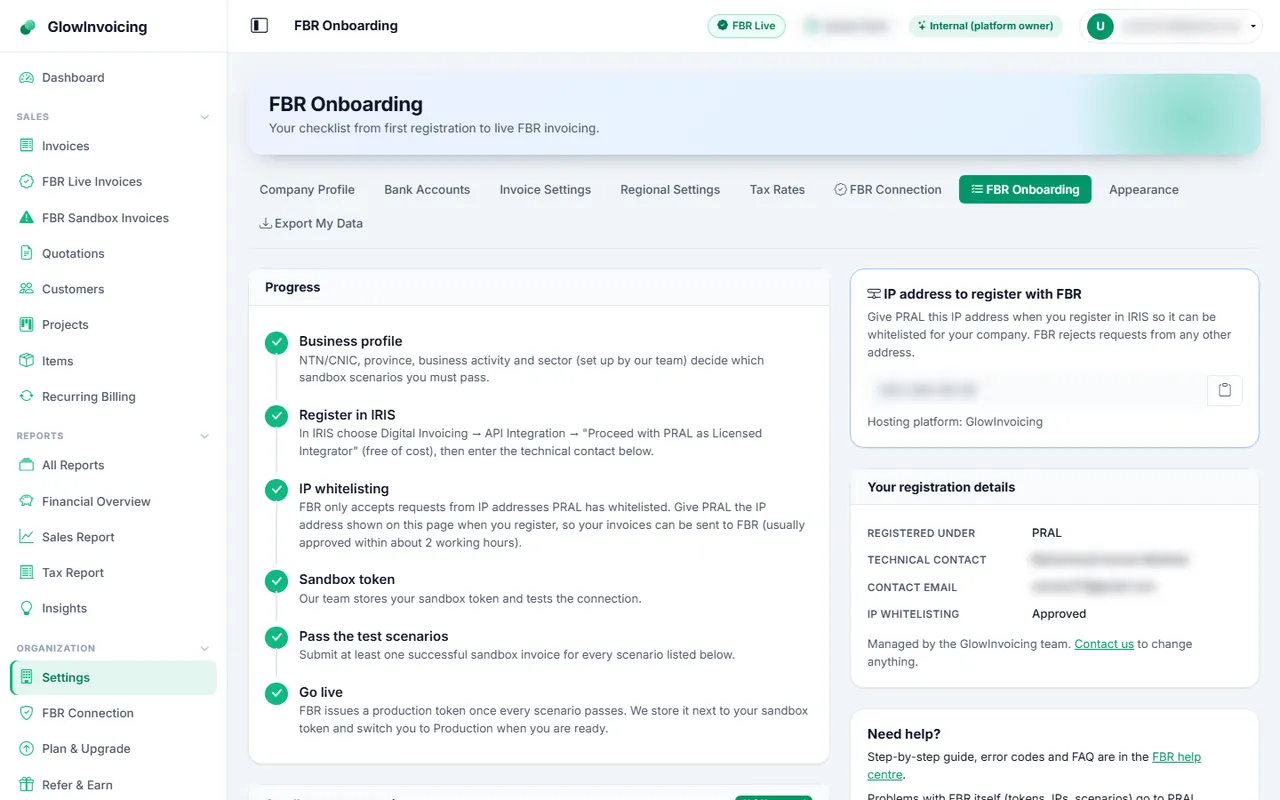
FBR onboarding checklist
Follow the checklist. FBR requires you to pass a list of test scenarios in the sandbox before going live.
Included in:✕ Sales Management✓ FBR Digital Invoicing✓ Sales + FBR
Open each scenario and press Create test invoice.
Validate and submit it in the sandbox until all scenarios are green.
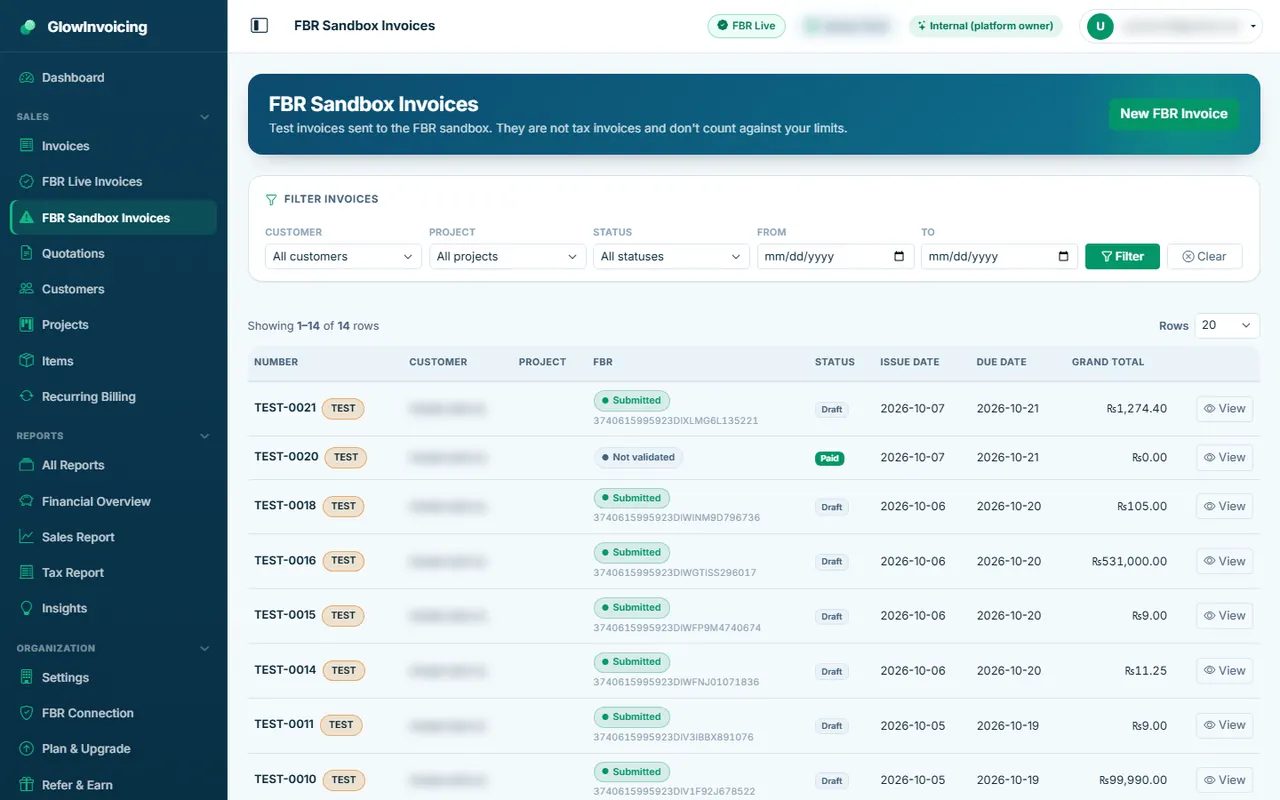
FBR sandbox invoices
Test invoices sent to the FBR sandbox. They are not tax invoices and do not count against your limit.
Included in:✕ Sales Management✓ FBR Digital Invoicing✓ Sales + FBR
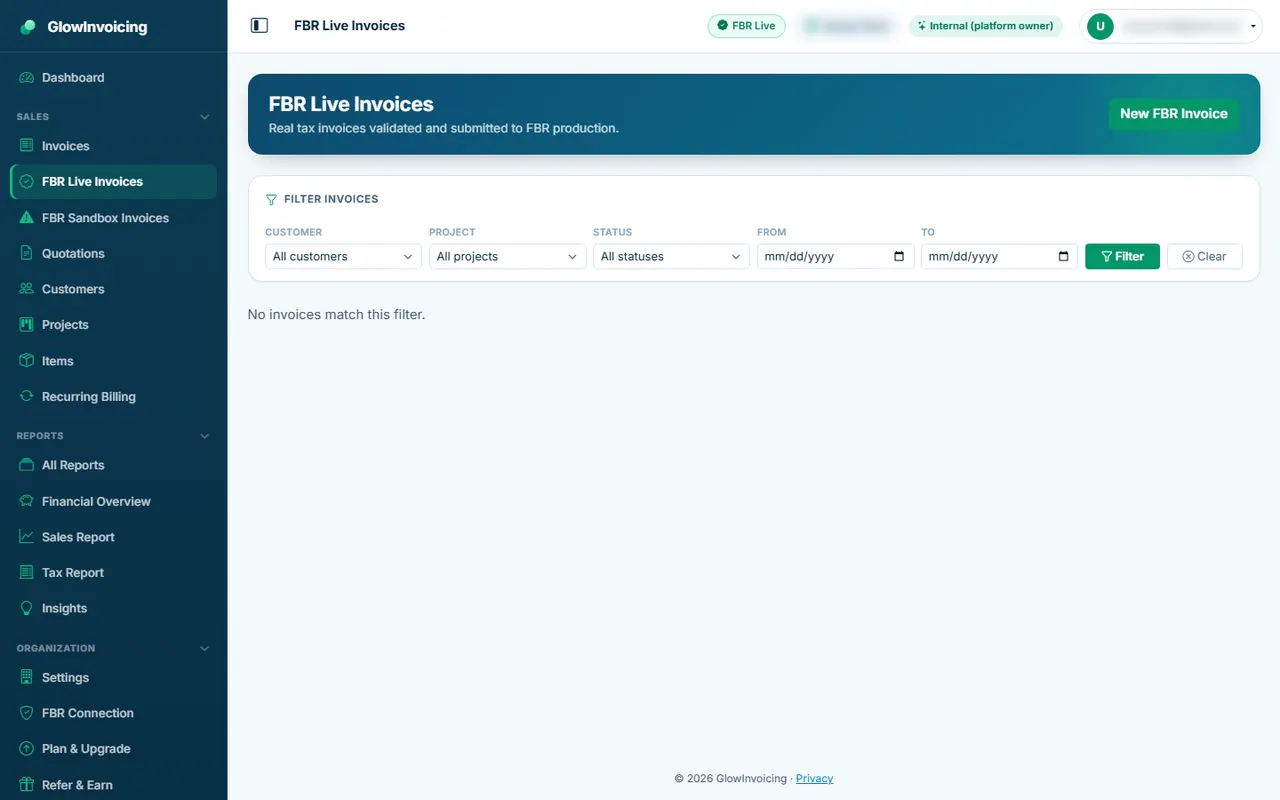
FBR live invoices
Real tax invoices registered with FBR.
Included in:✕ Sales Management✓ FBR Digital Invoicing✓ Sales + FBR
Open an invoice and press Validate, then Submit.
After submission the invoice is locked and shows the FBR number and QR code.
To correct it, create a Debit Note.
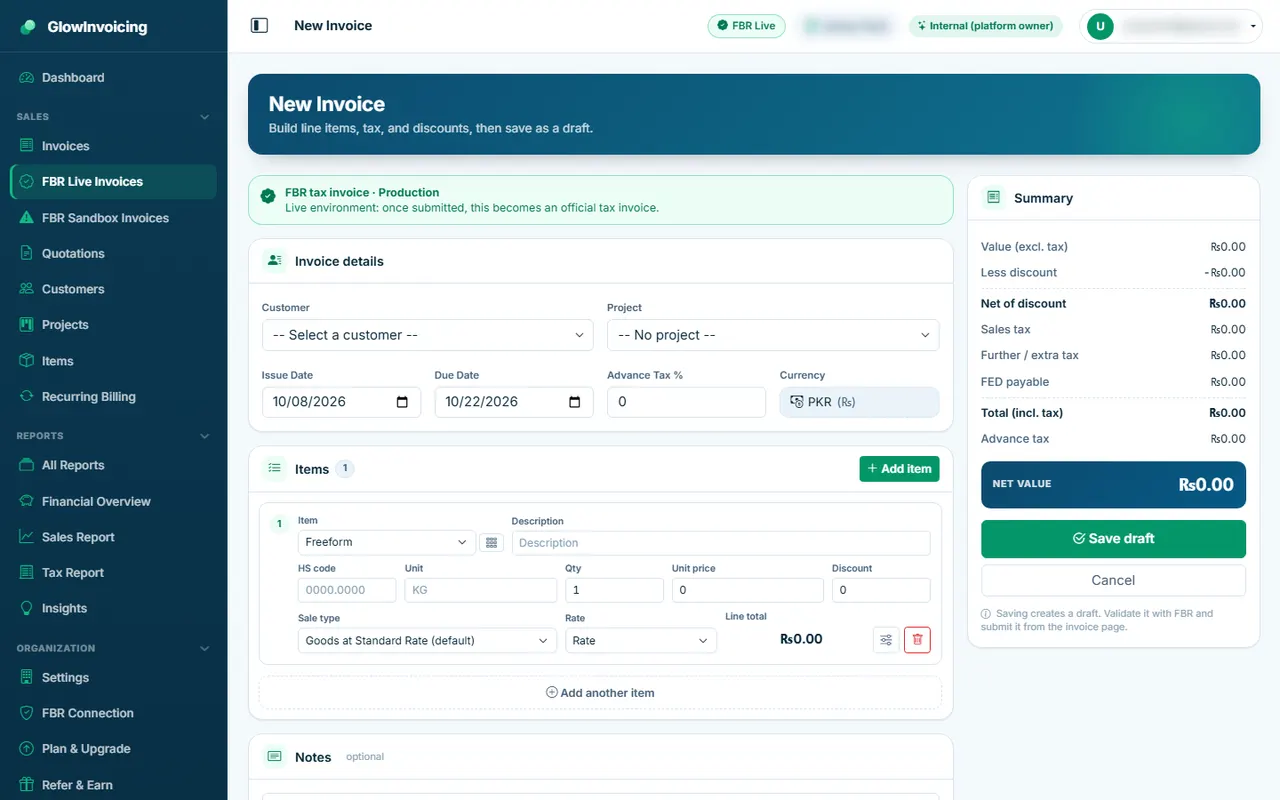
Create an FBR invoice
Each line needs HS code, sale type, rate and unit. Pick them from the lists loaded from FBR.
Included in:✕ Sales Management✓ FBR Digital Invoicing✓ Sales + FBR
Choose the buyer. Their NTN or CNIC is copied onto the invoice.
Add items; the tax details fill from the item.
Press Save draft, then Validate and Submit from the invoice page.
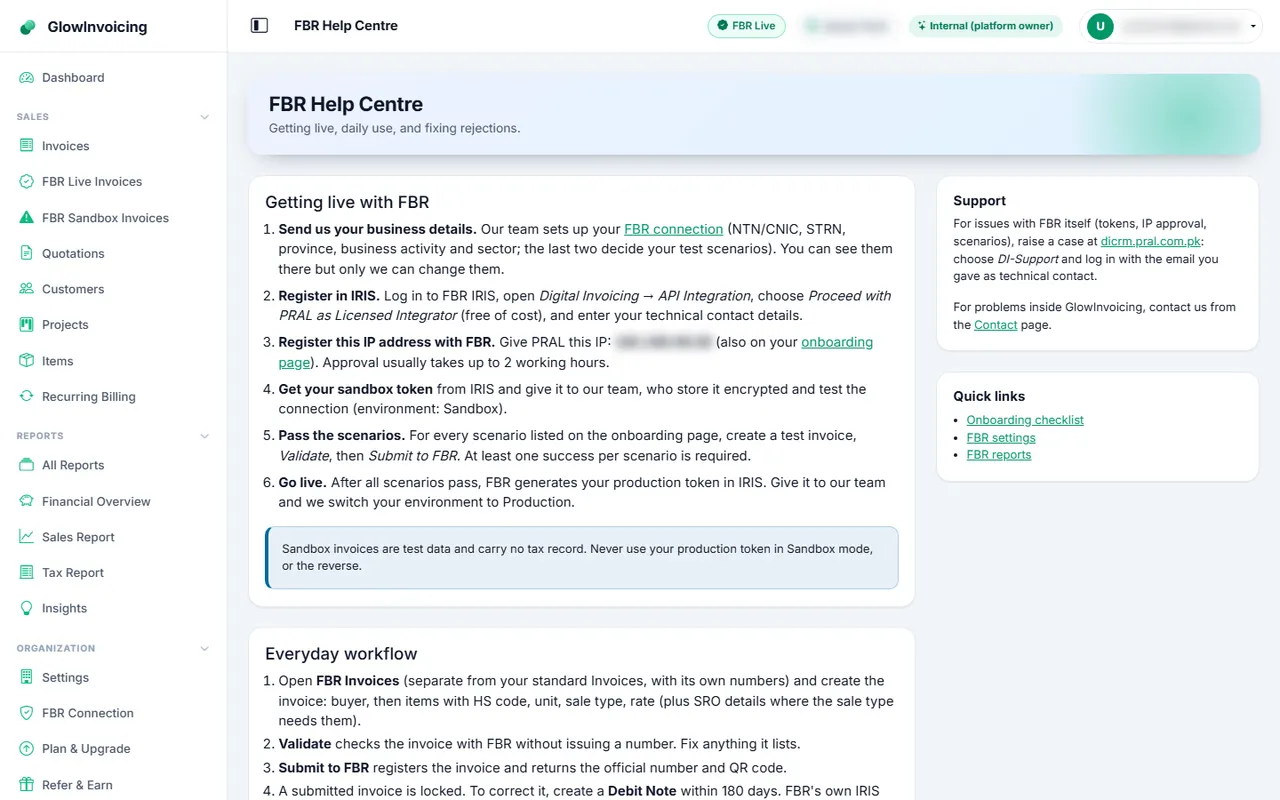
FBR help centre
Plain-language answers about FBR rules, error codes and what to do.
Included in:✕ Sales Management✓ FBR Digital Invoicing✓ Sales + FBR
5. Reports
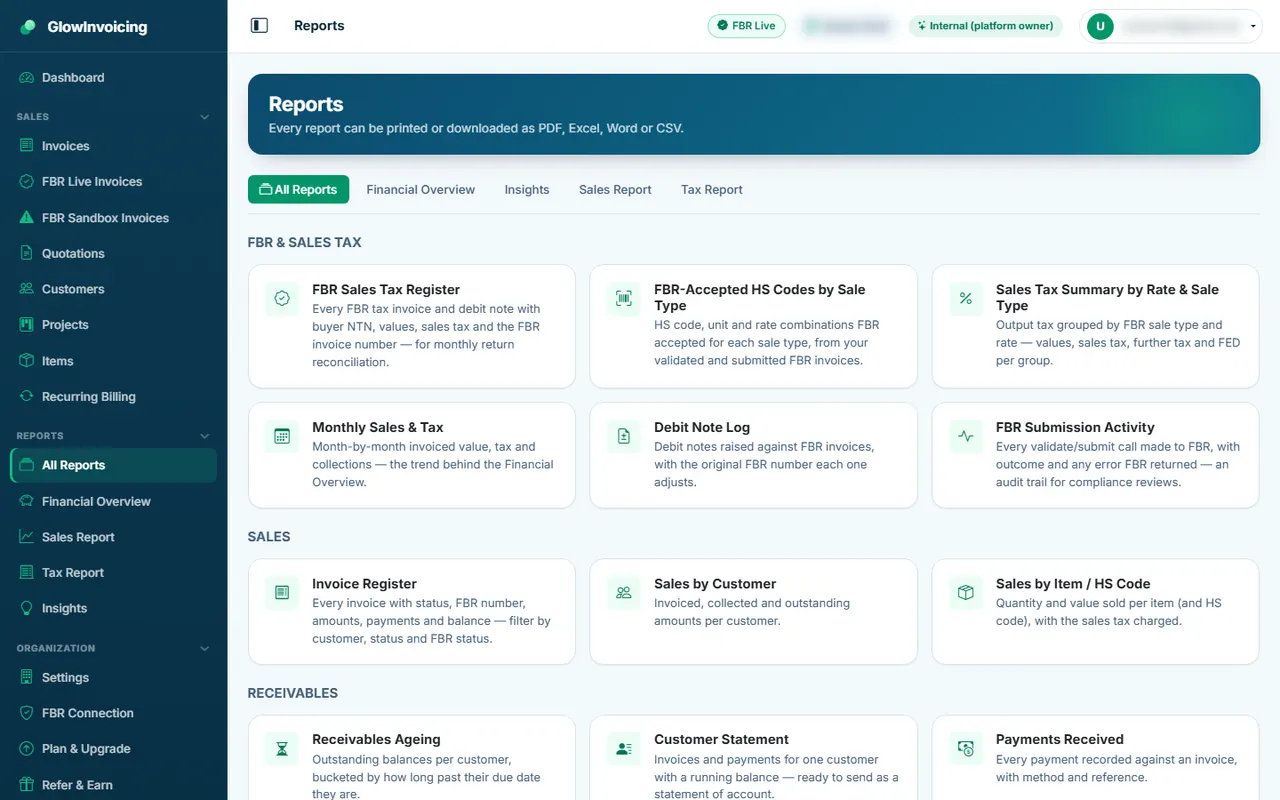
Reports
Pick a report, choose the dates and open it. Export to PDF, Excel, Word or CSV, or print.
Included in:✓ Sales Management✓ FBR Digital Invoicing✓ Sales + FBR
Sales and tax reports are in every plan. Customer statements, receivables ageing and payment reports are in Sales Management and Sales + FBR plans only (not on Sales Free or Hybrid Pro). The FBR accepted HS-code report needs an FBR plan.
Press a report name.
Set the period and press Run.
Use the export bar above the table.
6. Your plan and account
Plan, usage and renewal
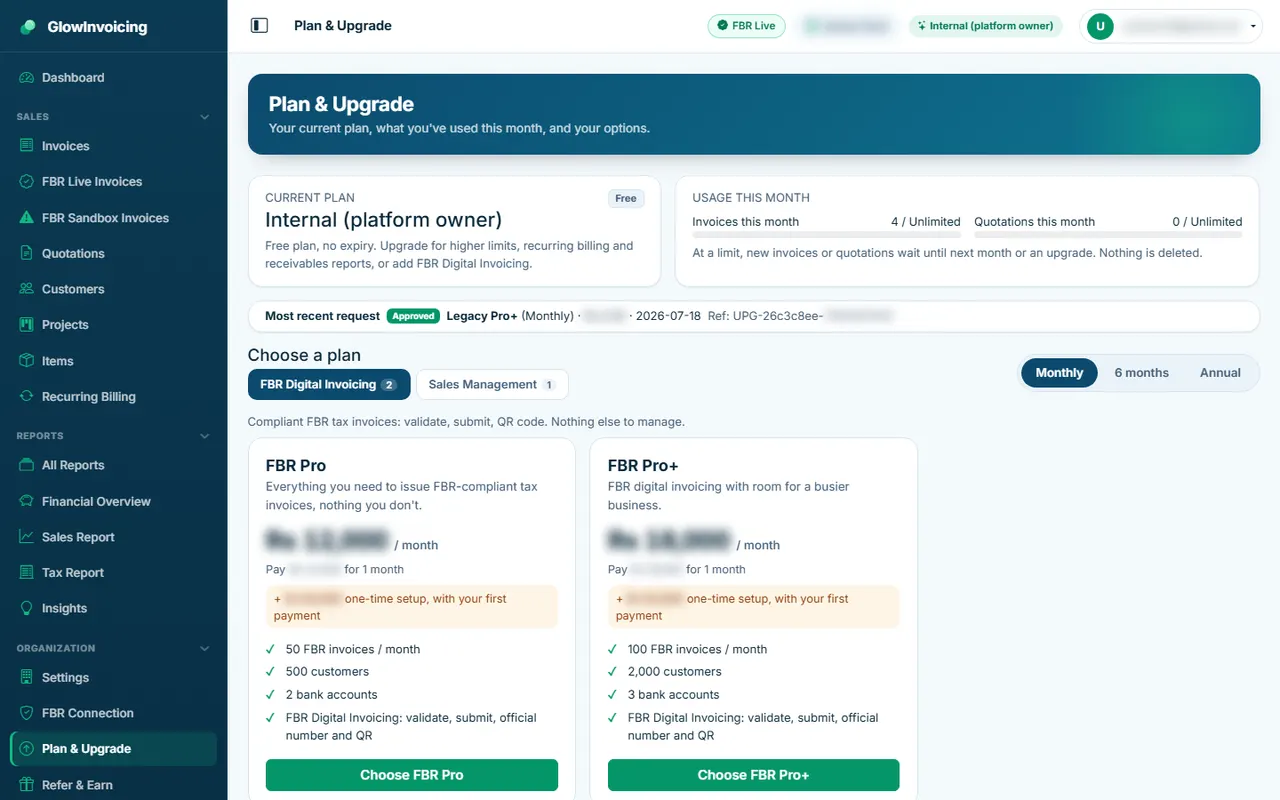
See what you have used, compare plans and renew or upgrade by bank transfer.
Included in:✓ Sales Management✓ FBR Digital Invoicing✓ Sales + FBR
Choose the billing period (monthly, 6 months, yearly).
Press Select on a plan, pay by bank transfer and upload the proof.
We approve it and email you; your plan then updates.
Tip: When a plan expires the account becomes read-only after a short grace period. Renewing opens it again.
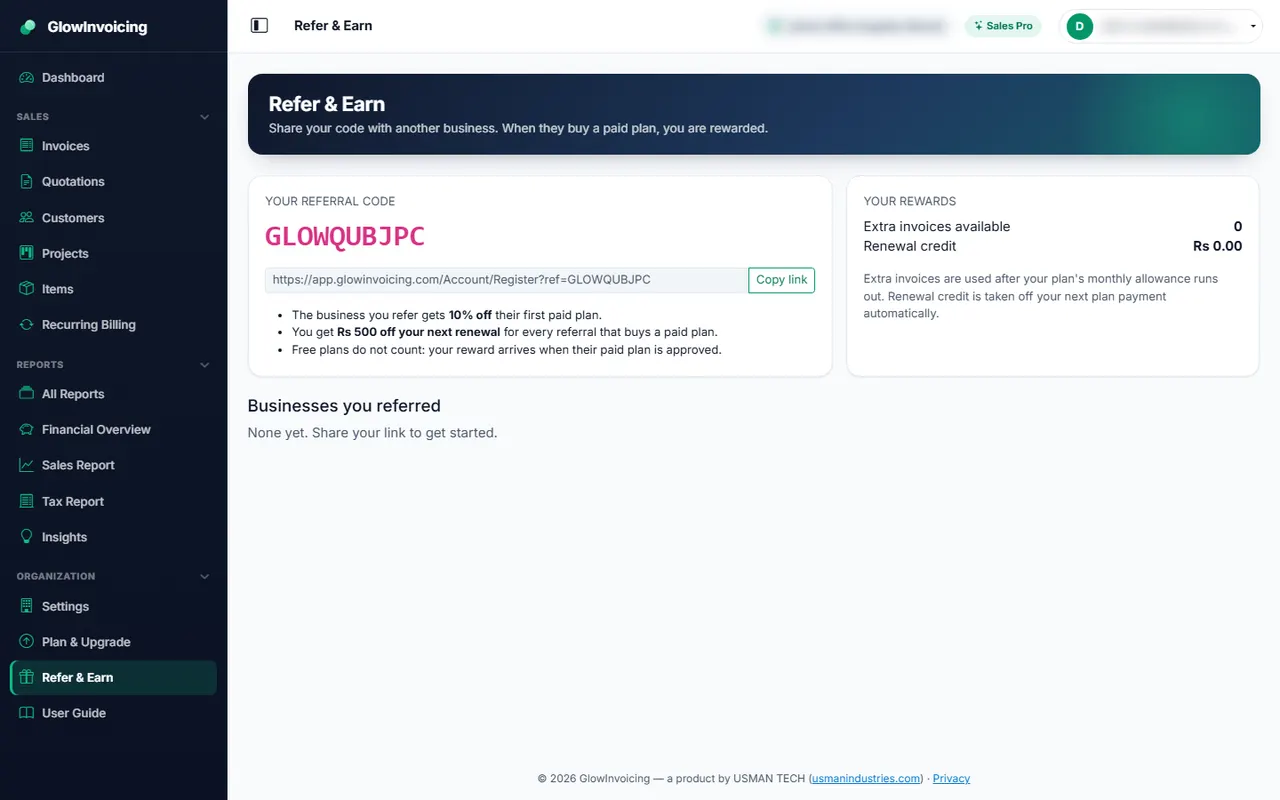
Refer and earn
Share your link. When a company you referred buys a plan, you earn a reward.
Included in:✓ Sales Management✓ FBR Digital Invoicing✓ Sales + FBR
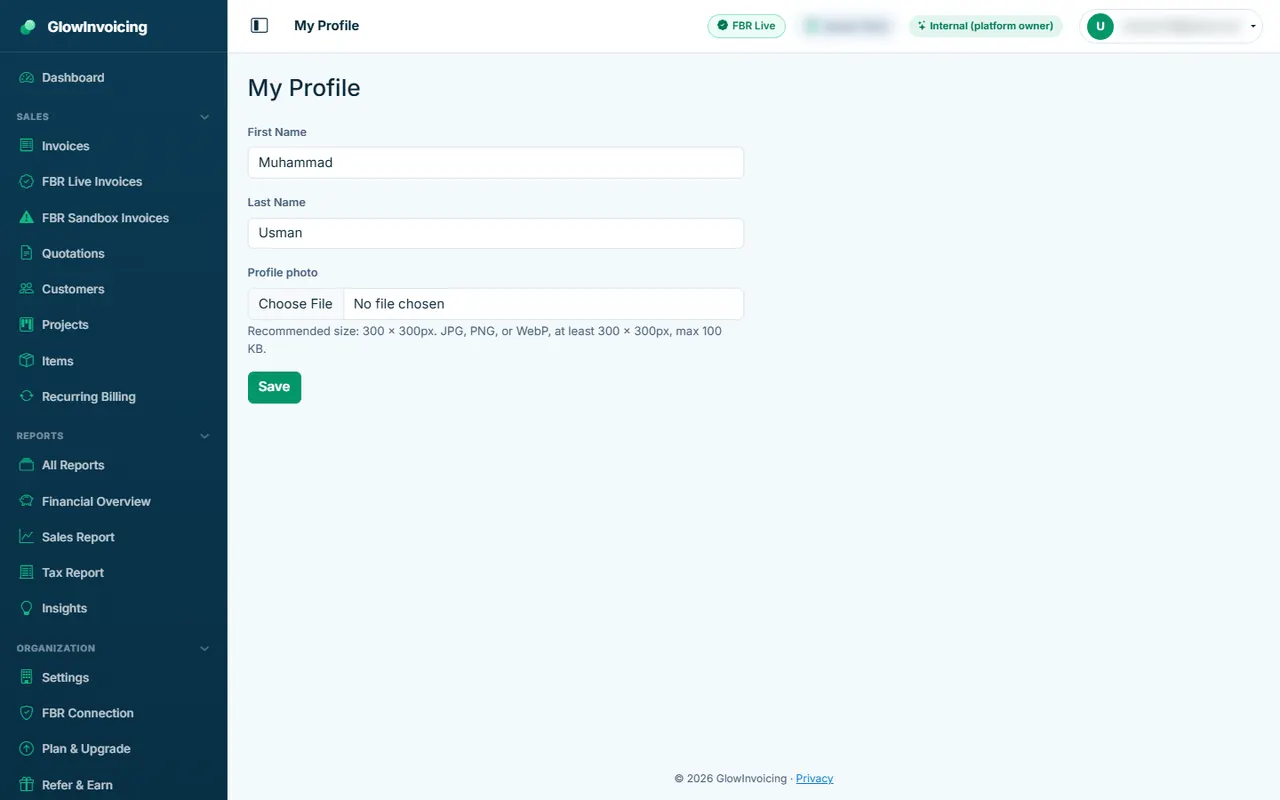
My profile
Change your name, photo and password.
Included in:✓ Sales Management✓ FBR Digital Invoicing✓ Sales + FBR
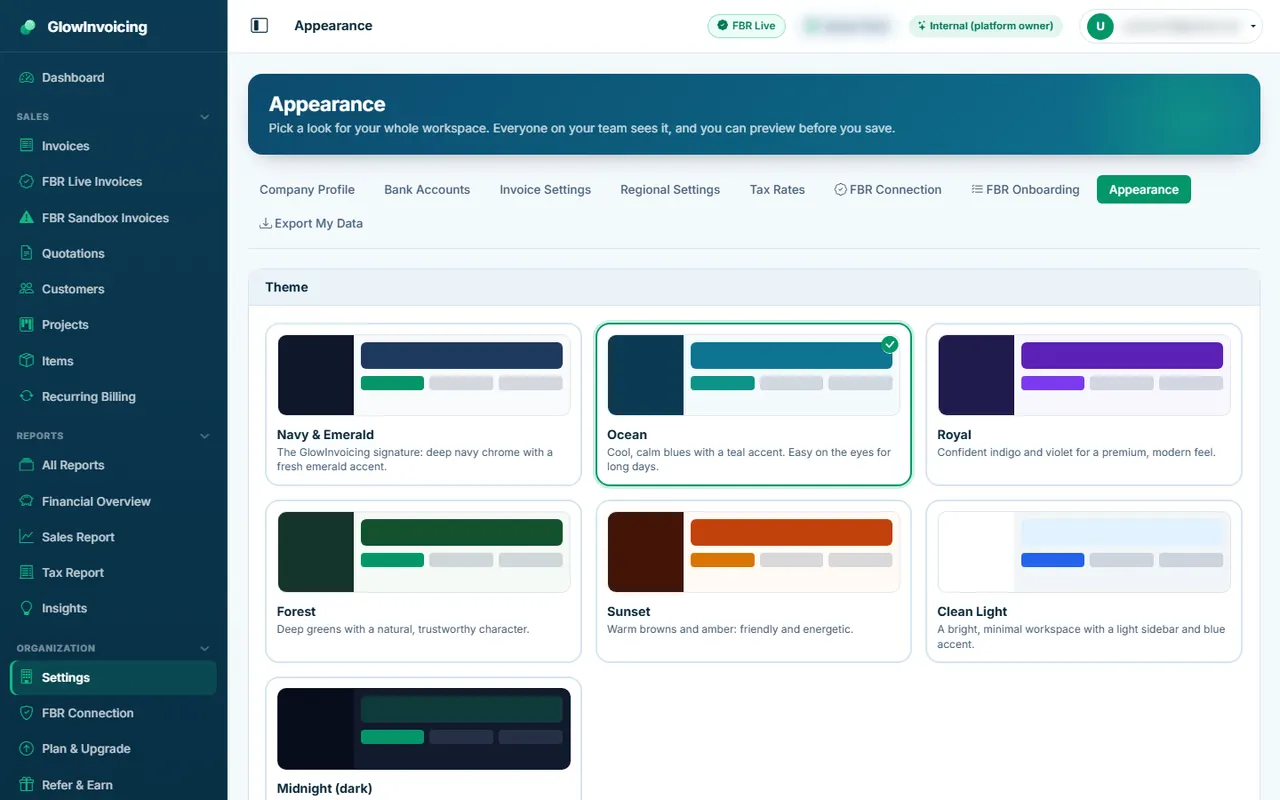
Appearance
Pick a theme and accent colour for your whole workspace. You can preview before saving.
Included in:✓ Sales Management✓ FBR Digital Invoicing✓ Sales + FBR
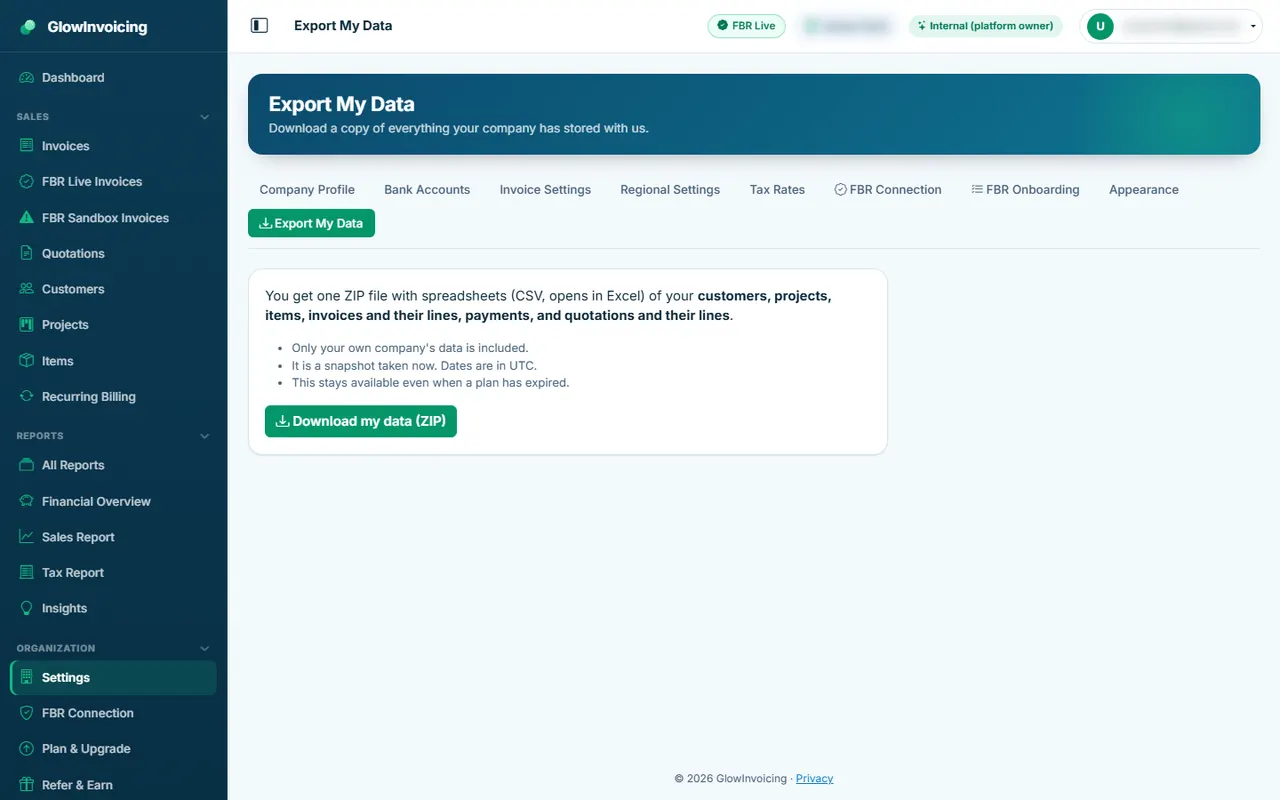
Export my data
Download a ZIP of your customers, invoices, payments and more at any time.
Included in:✓ Sales Management✓ FBR Digital Invoicing✓ Sales + FBR
🍪
We use essential cookies to keep you signed in and protect your forms — nothing more. We don't use tracking or advertising cookies.
Learn more